Wednesday, February 20, 2019

Using Tensorflow with Keras - Introduction

Tensorflow + Keras


Yeah i have heard of em... Yay!! Am a techie!!


Well good for you.. we are not going to talk in detail about what Tensorflow and Keras are... 
Although am sure, many of us at least want a crash course! Therefore, as a super quick intro.. 

Tensorflow: An open source machine learning framework backed by google (kinda sdk for machine learning). They have done the mathematical implementations so you don't have to re-invent the wheels.

Keras: Is also an open source library (kinda sdk) BUT it is an interface. What it does, is to further simplify the frameworks like Tensorflow so that even people like me can code for Machine learning!

For the sake of simplicity, will try to stick with imitating linear regression that we used in our previous example.. by this example you will see that using Keras with tensorflow simplifies our lives so much more!!

Lets take a sample data-set.

Nice huh!!! The data set above contains a randomized sample of information in X & Y columns. The goal of our app is to build a simplest neural network that can iterate through and help us predict values for given input.

Now, since we are going to use a linear regression, obviously the outputs shall always be somewhat a straight line.

Alright, lets begin! Will try to keep the codes in code sections so its easy for us to iterate through.

Lets prepare our dataset (i.e. Pre-processing of data)

#We will use Pandas to read the csv file
import pandas as pd

file1 = "../data/input_rand1.csv"

# Incase you have mode than 1 csv, you may want to use this piece of code to
# combine them
all_files = [file1]
dataset = pd.concat((pd.read_csv(f,delimiter=',') for f in all_files))

# We don't need empty values
dataset = dataset.dropna(how="any", axis=0)

#replace spaces with _ for headers
dataset.rename(columns=lambda x: x.replace(' ', '_'), inplace=True)

Lets divide the data into training set and testing set

train = dataset.sample(frac=0.8,random_state=200)
test = dataset.drop(train.index)

Once the data set has been divided, lets identify our features and labels (in this case, its X -> features, and Y-> Label)

X_train = train.drop("Y", axis=1)
Y_train = train["Y"]
# Also for Test set
X_test = test.drop("Y", axis=1)
Y_test = test["Y"]

So now are data is ready lets get the bigshots in the game

from tensorflow import keras
# We will like to see how the training went on tensorboard too!
from tensorflow.keras.callbacks import TensorBoard
import time

Initializing tensorboard and providing a location where it may want to store its files

NAME = "Linear_{}".format(int(time.time()))
tb = TensorBoard(log_dir='logs/{}'.format(NAME))

Okay.. now comes the most complicated part! We will need to build the model...
If you can recall, in our previous code, we had to create input_fn and all other fancy stuff so that we can convert our datasets into tensors and then pass it to the estimator.

Well in case of Keras with Tensorflow, you may not need that ..

So building model is simply.. 

model = keras.Sequential([
keras.layers.Dense(10, input_shape=[len(list(X_test))]),
keras.layers.Dense(1)
])

The above code basically mean that you are creating a model with 2 layers.. 1st layer has 10 nodes with input shape of number of columns in features.

And since we want only 1 output as result for every row of input that we give, we have 1 node as output layer.

model.compile(loss='mse',
optimizer='adam',
metrics=['mae', 'mse'])

For this example we are going to use adam optimizer, in case you want more details on Mr. Adam, go here

now let the training begin..!!!!
As mentioned no need to change pandas dataset to anything special, you can pass them as is to the keras system.

model.fit(X_train, Y_train, epochs=1000, validation_split = 0.2, callbacks=[tb])

Now the only thing remaining to do is test it out for predictions.
For this example am just going to run all the inputs (i.e. X) again through the predictor and see what will be the result (even though i know it should be a straight line somewhere in the middle of the graph.. still, its fun!)

input_dict = train
input_dict_x = input_dict.drop("Y", axis=1)
input_dict_y = input_dict["Y"]
predict_results = model.predict(input_dict_x)

Lets check our updated graph!!

Behold The Graph!


As you can see the graph has a straight line right in the middle, which we anyways expected..

In case you want to just download the code and run it.. feel free to swing by on my github : https://github.com/abhinavasr/machinelearning  I'll try to share most of my learnings there!

Till next time!!


Saturday, February 16, 2019

Learning Machine Learning


Learning The Machine Learning


Hello good people!!

It has been awfully long when we had our last chat!


Sorry Had been busy :(


Anyways, moving on.. , thought of sharing some of the learning what i have been able to get for past few months of working on various platforms and tools.

This is 1st of hopefully many blogs that will be published on machine learning.


LEARNING MATHSS!!!!!

Naahh..  not going to bore you guys with loadz of Maths and stuff, there are far better websites and blogs which talk about the theory of how and why machine learning works. While we will work through the code we will talk about some of the concepts behind these elements, hopefully will give you a good insight to how things will work out!

And please note!!! I myself am a student of this discipline so.. in case your system blows up.. am not responsible!

So where do we start?

Well i though of going directly on Keras for Deep learning, but we cannot make buildings without foundations! 
So will start with some of the very-very basic stuffs and then build toward more complex stuffs!

In order to start doing anything with Machine learning, we need to know what exactly machine needs to learn?

Do we need our machines to start predicting things based on history for example how will be the weather tomorrow (i wish it was so easy) or do we want our machines to categorize the data into already known blocks, for example based on the RGB values what is the closest color (assuming you have only trained the system with main color codes)?

Apparently these 2 methods have very complex names for itself 

Prediction and Classification


I know most of you want to see in the future so we will start with just that!

We are going to build a simple application which will read the currency values in past and try to predict whats gonna happen on a a given day in future! For the entire exercise we will be using Python3 as our coding tool and Tensorflow for Machine Learning operations!

For this first example we are going to use Linear Regression (fancy way of saying its a method that wants to find a straight line which can be closest to most of the data points that we have in our historical.


Linear regression.svg


Okay So Lets get the Code out of this!


Image result for enough talk lets fight


You can download the historical data for currencies here, we will be using Pandas to import our csv which will be stored in ./data/file.csv


import pandas as pdfile = "./files/data.csv"
dataset = pd.read_csv(file,delimiter=',')
print(dataset.head())

Cleaning up data for our usage wil require dropping the non-required values (e.g. SEC Filing) also converting dates to date format and then to int for our calculations, also drop any NAN values


#If Date was in string

dataset['Date'] = pd.to_datetime(dataset['Date'])

dataset['Date'] = dataset.Date.apply(lambda x: x.strftime('%Y%m%d')).astype(int)

dataset = dataset.dropna(how="any", axis=0)
print(dataset.head())

Divide your data into test and train data, also identify the X (features) and Y (Labels) In the example we will try to find how many cards were

train = dataset.sample(frac=0.8,random_state=200)
test = dataset.drop(train.index)
X_train = train.drop("Value", axis=1)
Y_train = train["Value"]
X_test = test.drop("Value", axis=1)
Y_test = test["Value"]


The dataset will look something like this (you can plot using matplotlib)

Import tensorflow and covert the dataset into the tensors


import tensorflow as tf


# Converting the Panda datset to tensorflow dataset, 

# this should be directly passed to the tf.estimator as input fn

num_epochs = 1000
estimator_input_fn = tf.estimator.inputs.pandas_input_fn(
      x=X_train,
      y=Y_train,
      batch_size=100,
      num_epochs=num_epochs,
      shuffle=True,
      num_threads=5)

Now we have all the data we need, so lets start building the classifer, for this example we will use Keras and build a simple linear model Common question, why do you need features identified when we already provide dataset itself. You may want to see the below diagram to understand how tensorflow relates data.


# Build features and setup classifier
dates = tf.feature_column.numeric_column(key="Date")
countries = tf.feature_column.categorical_column_with_vocabulary_list(
    key='Country', vocabulary_list=X_train.Country.unique(), default_value=0)
values = tf.feature_column.numeric_column(key="Value")

feature_columns = [dates,countries]
model = tf.estimator.LinearRegressor(feature_columns=feature_columns)

Since now we have our model ready, let's train this dude!


STEPS = 1000

model.train(input_fn=estimator_input_fn, steps=STEPS)


Lets also build the input function for testing the model

estimator_input_test_fn = tf.estimator.inputs.pandas_input_fn(
      x=X_test,
      y=Y_test,
      batch_size=100,
      num_epochs=num_epochs,
      shuffle=True,
      num_threads=5)

Evaluate how the model performs on data it has not yet seen.

eval_result = model.evaluate(input_fn=estimator_input_test_fn)
print("Evaluation result: ", eval_result)

Now lets make some predictions of price and see how our model is working

input_dict = {
      "Date": [20190216],
      "Country": ["India"]
  }
# For the sake of simplicity, we will stick to dataframes from pandas, 
# there is an alternative to use numpy, but dont wanna confuse with too many stuff
df = pd.DataFrame(data=input_dict)
predict_input_fn = tf.estimator.inputs.pandas_input_fn(df, shuffle=False)


Now we are ready with data so lets predict

predict_results = model.predict(input_fn=predict_input_fn)
print("\nPrediction results:")
for i, prediction in enumerate(predict_results):
    print(prediction)


There! All done!!


Now don't panic if your predictions sucks! 

Not your fault! We will need to work on lots of factors that influence the predictions. But hey!! you did loadz today... 

Hope this was useful!

Until next time..  

Monday, March 19, 2018

HCE: Host-based Card Emulation 2/2

Hola!!!! Man!! this post really took its time! But glad it made it :D

Welcome back, hope you have been doing good.
In my last post we were discussing basics of NFC and what do HCE really means.. in case you missed it please take your time and read that first before proceeding with this blog. Else you may find yourself TOTALLY LOST.

Read it here : http://abhinavasblog.blogspot.com/2014/03/hce-host-based-card-emulation-12.html

Ok!! I've read it already!!!
Kool enough, let us begin with our part 2 of understanding HCE. Out here we will discuss a bit about what it takes to build an application that will use the features of HCE.

As described earlier, HCE enables application to emulate a card and perform APDU exchanges without the need of secure element.

Some Basic Terminologies:

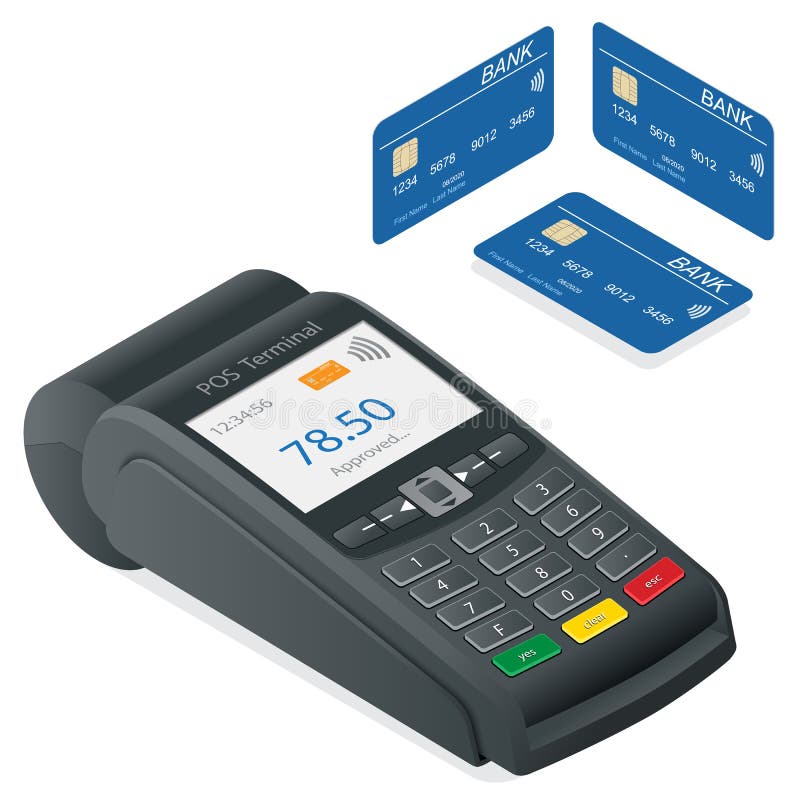
  • APDU : Application Protocol Data Unit, they are nothing more than data & commands in Hex (Hexadecimal) values, the POS terminal will only be able to communicate using this data format.
  • AID : Application Identifier, treat them as a name for the application that terminal wants to talk to. Again the name is coming from Terminal therefore expect it to be an APDU.
Thats it, you don't need any more terminologies to remember ;)
Going forward we will keep on using these to explain things better.

Okay, so...whats next?
Next let's try to understand what exactly happens when you tap that card on the terminal for contactless. Why are we talking about cards??? Well, the entire concept of HCE (Host Card Emulation) is about emulating an existing behavior of Card communication with the terminal in order to leverage the existing infrastructures.

Okay..! what happens between Card and Terminal (a.k.a POS)
Remember, between card and POS, the POS tries to be a hero who do all the talking but is actually the dumbest guy because all he do is asking question to the card. Whereas, the card is that cool guy who has all the right answers!


Following is their chat in  human readable format:

POS: Hey Dude, What do you support?
Card: I support Mastercard applet with AID 1234
POS: Hey AID 1234 please tell me if about yourself
Card: Okay, here is some basic info in clear
POS: Thanks, but can you also give me some secret info to complete payment, i need it for approval from your issuing bank
Card: Sure, @#$@SFGSDF@# take this encrypted value, and share it with my issuer for approvals
POS: Alrighty! Thanks!

Now, note, that the communication between POS and Card is via APDU.

With the above understanding, all you as an app developer have to do is emulate the same behavior (i.e. the behaviour of the card) from your application.
i.e. You will need to interpret the APDU commands, expose and AID to which POS will talk to and generate the Card profile (i.e. the card basic info) and the Cryptogram (i.e. encrypted data for bank verification).

Hope this blog was able to help you understand how things work for HCE! In order to build application using HCE you will need critical parties to come together (i.e. Issuers & Card Schemes) to provide you necessary keys and data formats in order to enable payments through your app.

Food for thought: Payment apps are not the only thing that can be developed leveraging HCE!


Thursday, November 6, 2014

Updated Google APK's (Google Map 9.0, Calendar 5.0 & GMail and more)

Hey All,

This is a quick post to get you guys up with latest treats from Google with Materials!!

Google Map (9.0) : Link

Google Calendar (5.0): Link

Google Mail (5.0) : Link

Google Camera (2.4) : Link

My Glass (3.4) : Link


So, there you go!! Enjoy and feel free to share!

Thursday, September 11, 2014

Google Hangouts - Voice Integration

Hey people!

Just yesterday Google announced integration of Google Voice and Google Hangouts under a single banner.
And today we found that they also released 2 new Applications


  1. Google Hangouts v2.3 (Google Play Link)
  2. Google Hangouts Dialer (Google Play Link)

Google Hangouts v2.3
Its a BEAUTIFUL application, with major UI enhancements.


Hangouts Dialer will simply land you up on Hangouts caller page


In case you are unable to download the application from Play Store, you can use the following links to download and play with these awesome apps.

Hangout Updated Version 2.3: Hosted Link


Hangout Dialler: Hosted Link

You can get more intesive details about the updates from Google Official channel blog

Happy Talking :)


Friday, April 11, 2014

Animated GIF ImageView Library for Android

Okay Good People!!!
Announcing today a brand new library which is intended to help you out with displaying Animated GIF's within your applications.

WHY A NEW LIBRARY?
As an Android developer you would have noticed that Android has not provided support for Animated GIF's as a component.
Therefore in order to show an Animated GIF's we usually end up using WebView in application which has its own disadvantages (Memorish Isuuess!!!).

THAY THE LIBRARY!
https://github.com/abhinavasr/giflib

Screenshot of Sample Application

The Sample application demonstrate that the Library Can handle both regular Image (PNG/JPG) and Animated GIF on same View. Therefore giving developer the flexibility to use Image/GIF without making any changes to his/her code base.


Sample Implementation:
layout.xml

        android:id="@+id/animatedGifImageView"
        android:layout_width="match_parent"
        android:layout_height="wrap_content"
        android:layout_alignParentLeft="true"
        android:layout_alignParentRight="true"
        android:layout_above="@+id/button1"
        android:layout_below="@+id/textView1" />


Activity.java
animatedGifImageView = ((AnimatedGifImageView)findViewById(R.id.animatedGifImageView));
animatedGifImageView.setAnimatedGif(R.raw.animated_gif,
TYPE.FIT_CENTER);
That's It!

AnimagedGifImageView supports some basic parameters to give you better control of image resizing (If required) There fore you can pass :

FIT_CENTER: Stretch and fit image while maintaining aspect ratio
STREACH_TO_FIT: Stretch Image irrespective of aspect ratio
AS_IS: Place the image without any manipulations.

Hope you will use the library and make your life easier :)


Monday, March 17, 2014

HCE: Host-based Card Emulation 1/2

Its been quite long since my last post...
Have been quite busy exploring the possibilities with various new technologies :) It's about time that the learnings must be shared.

In this post i will try to share some simple and basic details about much talked HCE.

Q> What is HCE?
A> Host-Based Card Emulation

Er... whats that??
Before we talk about HCE (Host-Based Card Emulation) we must understand what is CE (Card Emulation)

Card Emulation is as it says emulation of a card (CreditCard/ ID Card/ Loyalty Card / any card) over NFC interface of a mobile phone.

In this mode a mobile NFC can exchange APDU (Data) with the a POS (Payment Terminals) or any other Terminal (eg. Security Machine on Doors or a Time punching machine for your office )

Alright!! I understand NFC but whats Card Emulation?
A card in this refers to a an environment which is created with the help of secure element, and applets.

Woaahhh 2 NEW TERMS!!!
Secure Element:  In simplest words.. Its a memory + processor + Mini OS which is out of phone OS, is highly restricted for access and is believed to be non-hackable!
Applets: Nothing more than small Java Programs which can run on this Mini OS of Secure Element. Which communicates based on Hexadecimal Commands also known as APDU.

So when you use your credit card or even a sim card remember "YOU GOT THE POWER" of secure element in your hands. Yeah that a freaking complete Operating system which is super secure in your hand.

Ok.. so??
So Card Emulation basically says that in order to communicate with this Card (Secure Element + Applets) the Phone NFC will accept the commands, will send these commands to Card residing somewhere in the phone and then will forward the responses generated from this Card over NFC interface back to the terminal.


Now to ease things up Card can be present in 3 of these location
1. Embedded Secure Element
2. SDCard based Secure Element
3. UICC (SIM Card)

Kool!! then why do we need HCE?
The biggest advantage is also the biggest disadvantage for Secure Element, being highly restricted, any addition of deletion of data needs heck of approvals from the provider of these.
For example: In case of UICC based Secure Element, only the MNO (mobile Network Operator) who owns a SIM card is authorised to put your CreditCard data inside the secure element, BUT, the CreditCard belongs to a Issuer (Bank) therefore in-order to put one simple CreditCard inside a secure element you need Bank and MNO to come together and work together. No wonder you don't see many application which uses any of these technologies.

Now with HCE, there is no need for Secure Element, I mean you can work even without them.
Now the data can directly be sent and received by an application, your own phone application.


Next we will get in more details of Implementation... To be Continued...


Friday, November 22, 2013

Barcode Scanner and Generator (Version 2)


On November 4th, 2012 we launched QR Code Scanner and Generator V1

(http://abhinavasblog.blogspot.sg/2012/11/creating-your-qr-code-scanner-and.html)


THANK YOU FOR YOUR SUPPORT TILL DATE


Since then we made numerous progres on the library and updated it time and again.

Time has now come to welcome better smarter version of BarCode fragment library.


Please welcome Barcode Fragment Lib V2

The library is located at https://code.google.com/p/barcodefraglibv2/ .The library has better features and more detailed samples.

Unlike previous versions you can now simply add a jar in your app and start using the complete scanner functionality.
You can download the jar's from here: BarcodeLibraryFragment and Barcode Core (Please note both jars are mandatory)

Library now also support some added barcode types (e.g Aztec, Datamatrix).

Please read the wiki located at https://code.google.com/p/barcodefraglibv2/wiki/HowTo to start using the library.

There is a sample implementation for easier understanding of usage at : : https://code.google.com/p/barcodefraglibv2/wiki/SampleImplementation

I am also looking for the contributors for maintaining the library. Please let me know if you are interested to enhance this library.

Friday, November 8, 2013

Install Hangouts 2.0.122

Google has released Hangouts 2 which gives you additional benefits of sending and receiving SMS right from your hangout application.

Hence, the over all experience of application is much more smoother and definitely richer.

You can download the file from here

Features:


The new Hangout first got released as Version 2.0.12 which was having some issues with Video chats but the current version i.e Version 2.0.122 is expected to resolve that.
Currently the APK is only for Nexus 5 in the Android Market but it ain't gonna stop you from getting it ;)

Lemme know about your experience with this version.

Monday, November 4, 2013

Setup Android Studio On Ubuntu 13.10

Android Studio is still in its early development days. Hence, it's still not completely polished.

Yet again its one of the most powerful tools out there in the market which can be very useful if you start using them :D


At this point of time if you want to start Android Studio, you need to run a shell file every time, which no doubt is not so user friendly and may become frustrating as you always have a Terminal window associated to it, resulting multiple open windows on your desktop.

In my previous post i told you guys how to setup android and other things on Ubuntu system (Including java)

In this post ill try to help you setup Android Studio.

Just follow below:

  1. Start Terminal
  2. $ sudo -i (It will ask for password)
  3. cd /usr/share/applications
  4. nano AndroidStudio.desktop
  5. Enter following  in the file
[Desktop Entry]
Type=Application
Terminal=false
Name=Android Studio
Icon=
Exec=

That's it !! you are done!

Now simply go in your Applications you will find Android Studio application which you can click and start anytime you like. You can also drag it down to quick launcher.

Hope it helped!

Tuesday, October 22, 2013

Working With Ubuntu 13.04 and 13.10 Java JDK/JRE ,Chrome and Android

Hi All,

Recently i updated my Linux system to 13.10 and to my greatest pleasure and frustration i ran into couple of issues :D

Here is a brief of what i faced and how it got resolved, hope this will help you get your stuff too! :)

In this post we will install Chrome, Instal Java7 and setup Android SDK. So lets begin

INSTALLING GOOGLE CHROME
Well i am a great fan of Google Chrome but was upset with the fact that Google has not yet updated their application to support latest libraries, thus when you install Ubuntu 13.04 and above you will find that there are couple of dependencies that are unsatisfied.

Well there ain't much you need to do! :)

Install this depending on your OS installation

For 64 bit Systems: libudev064bit.deb
For 32 bit Systems: libudev032bit.dev

Once above is installed you can simply download the application from google and run the deb file. You should be able to install Chrome now :)


INSTALLING JAVA
This has been a very prolonged issues as Oracle as not been able to make its way in Canonical repositories andUbuntu has been pushing openjdk and other open Java.
Again if you are a developer the you will be better off with Oracle Java only.

No worries simply follow the following steps:

  1. First remove openjdk from your system: sudo apt-get purge openjdk*
  2. Now install oracle java 7 in ubuntu 
  • sudo add-apt-repository ppa:webupd8team/java
  • sudo apt-get update
  • sudo apt-get install oracle-java7-installer
  • Follow the installation steps
That its now you can check installed java version by typing  : java -version


CONFIGURING ANDROID SDK
Even if you have downloaded Android SDK you will not be able to run adb you will get follwoing issue all the time. error=2 No such file or directory' while attempting to get adb version from

This is due to missing ia32-lib which is not available for 13.04 and above hence you need to individual install libraries required for adb
Type following command


sudo apt-get install libc6-i386 lib32stdc++6 lib32gcc1 lib32ncurses5 lib32z1

And you are done :)
Hope you have been able to resolve all your issuesand now enjoy your Linux


Thursday, October 17, 2013

Sync and Backup For Free!!!

I have been always wondering if i could get some backing up solution which can help me to save and sync files between my computers and Mobile devices.

Above all i wanted all these photos and files to be PRIVATE!!! i don't want them to be saved on a remote server!!!

I believe this is a generic requirement and is applicable to every one out there!
  • Ever wondered how to backup photos from your Mobile phone in full resolution 
  • Wanted to synchronize files between your own computers
  • Wanted to share files between friends of HUGE size
  • Wanted the files to be secure
  • Wanted all the above for free for LIFETIME??
HOW TO GET IT ALL??
Simply follow the below

Install BitTorrent Sync : http://labs.bittorrent.com/experiments/sync.html
Its available for all the platforms so you should be just fine


Steps of Setup:
  1. Install the application on all your devices
  2. Depending on the device (Mobile / Computer) you will get option to choose folder for Syncing/Sending/Backing up your files
  3. Once selected you will be provided a code.
  4. Simply enter the code in any other device you want to sync with
  5. You are Done!!!
  6. You can reffer to http://labs.bittorrent.com/experiments/sync/mobile.html for more details of installation.
Cheers!!


Monday, September 30, 2013

Android's Device Management

Hey There!!!

i know it has been quite long since i updated you guys with any relative news..

APOLOGIES.. :)

Most of us are holding Super Charged Android devices, its just that few of us know how to get the best out of it.. :D
So today i'll try to help you good guys out with one neat trick which you can use to super secure your android devices.

DEVICE ADMINISTRATION

Relax !!!!!!
We will setup and will show you a pro in using device admin (Administration) without throwing away a sweat!!!!


BUT WHYYY??

Using device administration you can do following

1. Ring your device remotely
2. Locate your device
3. Lock your phone and Change password
4. Wipe your device remotely

And no need for ANY third party apps (Non Google App) to manage and secure your mobile phone.

Just follow these 3 Steps
1. Click on Google Settings Application


2.  Click on Android Device Manager


3. Check on Both Check boxes


4. You will be asked for confirmation on Android Device Manager screen, Click on Activate


5. Once clicked you will be back on Google Settings Screen, just close the app


THAT's IT!! You are done!!!

Now if you want to play around simply click on this link
https://www.google.com/android/devicemanager?hl=en&u=0


ENJOY!!!!

Wednesday, June 26, 2013

Browsing through Android Source Code

Many time we want to understand how are Android API's implemented,
For example when you are using a API and want to understand the implementation of that api, you certainly don't want to browse through entire Android source to check what the implementation, it just kills the fun.

From

To


Here are the simple steps to understand how to do this!


WHAT ALL IS REQUIRED?
To accomplish this you need 2 things
  1. Eclipse
  2. Internet connection
STEPS:


Once completed accept changes and restart your eclipse.
Now next time you wanna checkout the source just check for definition of class/function. :)